Remote management
How to manage screen time from your phone with tvusage Remote
Install tvusage on the supervised child device and use tvusage Remote on the parent’s phone or in a browser. They have different jobs: tvusage monitors and applies controls on the child device; Remote lets you review linked devices, check usage, and manage synced profile rules.
Connect before changing controls
- Create your parent Remote account.
Install tvusage Remote on your Android phone, or open the web remote in a browser. Choose Sign up if you need an account, then Sign in. Use this same account when connecting each supervised device.
- Connect the supervised device.
Install tvusage and complete permissions and parent PIN setup. Open Settings → tvusage remote → Sign in, use your Remote account, and agree to the displayed data policy. This registers the device. Confirm it appears in Remote before relying on a remote action.
- Create profiles in tvusage, then review them.
Profiles originate in the tvusage app. After they sync, Remote can show and edit them. If no profiles appear, check the connection, create the profile on the supervised device, and reload Remote instead of expecting Remote to create it.
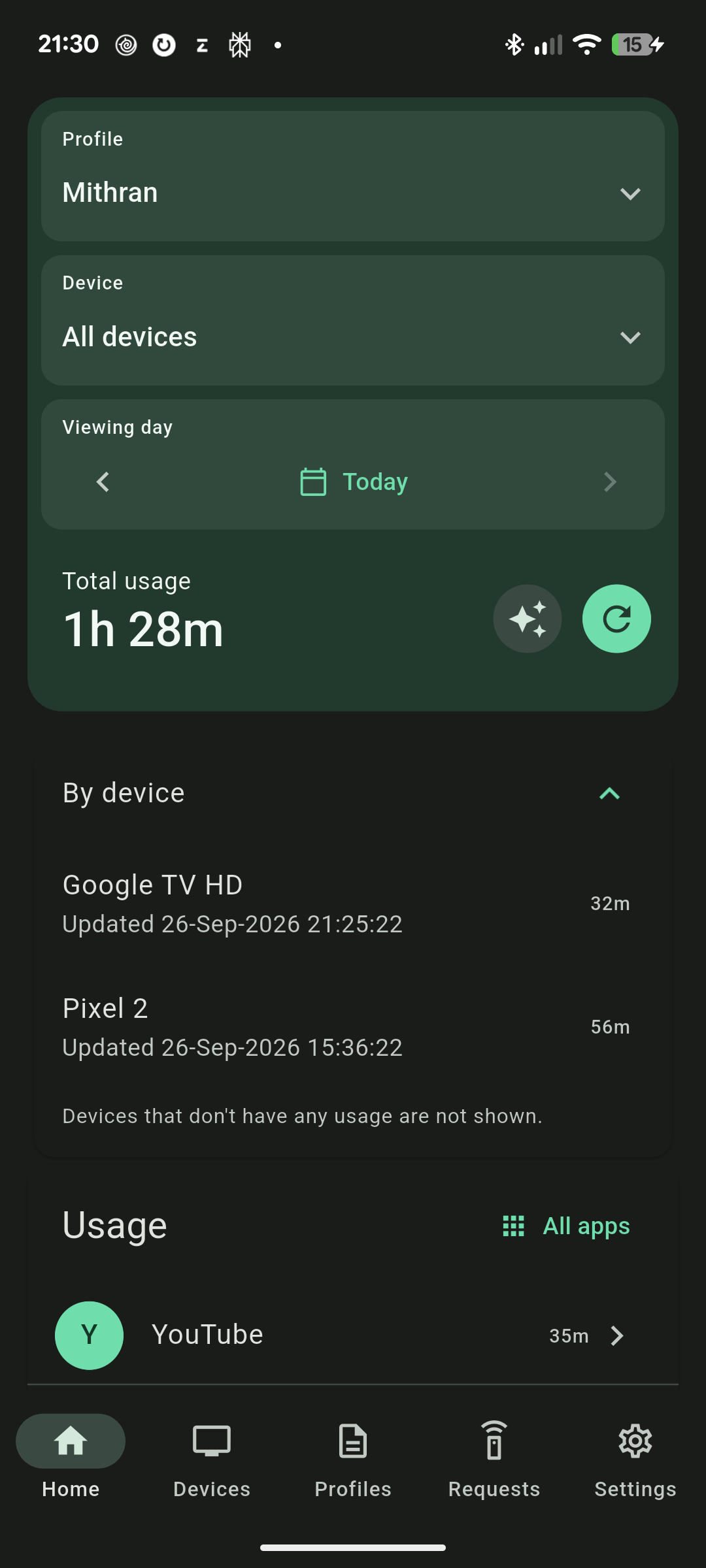
Choose the right view
Select a child’s profile to see their usage. Choose All devices for the combined view, or select one device to inspect its contribution. Device rows are included in the combined total, so adding them to that total would count the same usage twice.
With Pro, open a synced profile to adjust Screen time, Usage hours, or Breaks, then choose Save. Remote also provides linked-device controls and PIN requests. Check the selected profile and target device before changing a rule, particularly when several children share the same TV.
Remote updates depend on connectivity and synchronization. A stale report or disconnected device does not confirm that a new rule has been applied. Reconnect, refresh, and check the supervised device when necessary. Installing only the parent Remote app does not monitor an unconnected child device. Keep the parent PIN and account access private, and contact support with device and version details if the connection remains unreliable.