Family routines
Make homework, chores, and reading clear before more screen time
Use a tvusage Remote parent message to explain what needs doing before more screen time. Send it with a device lock or attach it to a declined eligible request. Parents check completion manually and decide when to unlock.
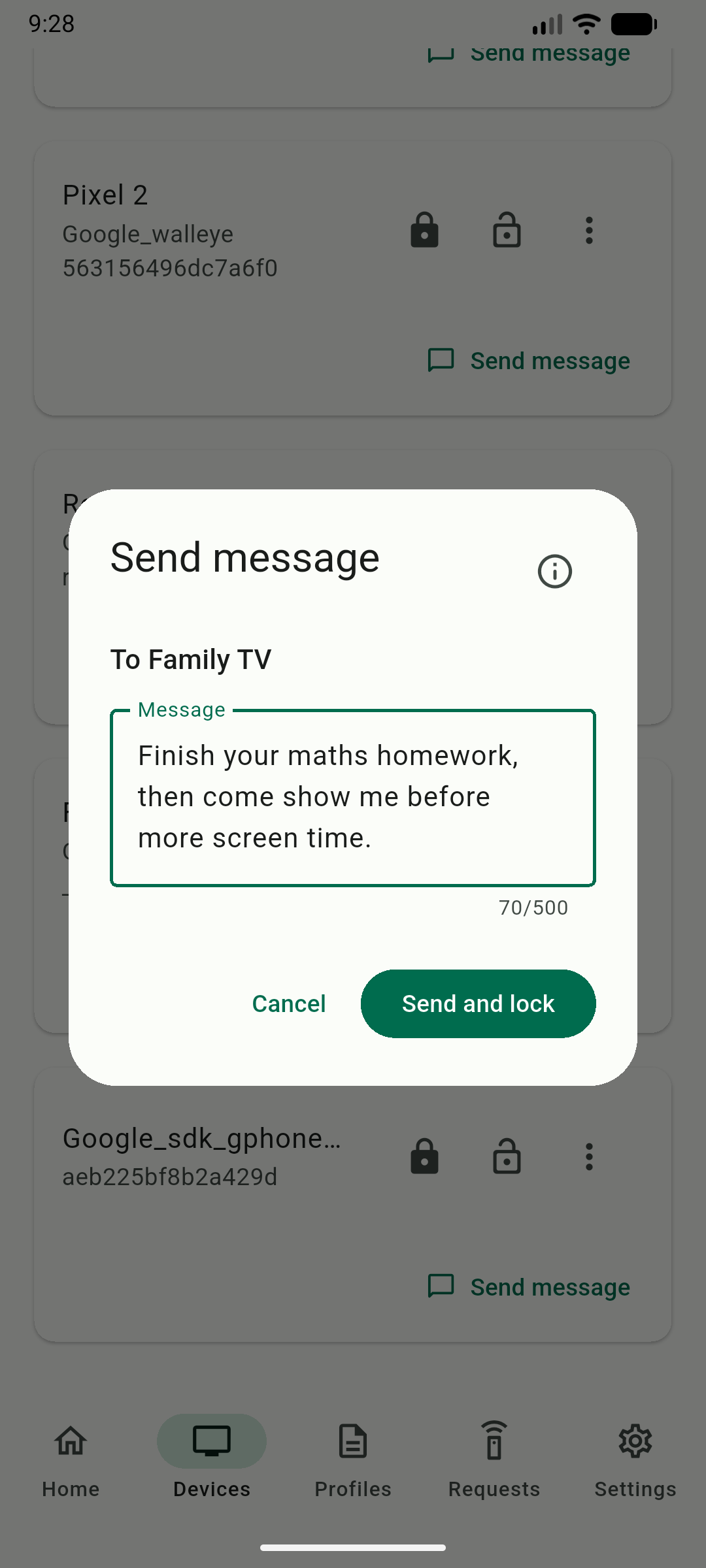
1. Send a message and lock
Open Send message on the linked device, write one concrete instruction, then choose Send and lock. Agree on the routine with your child before using it during a session. For homework:
Finish your maths homework, then come show me before more screen time.
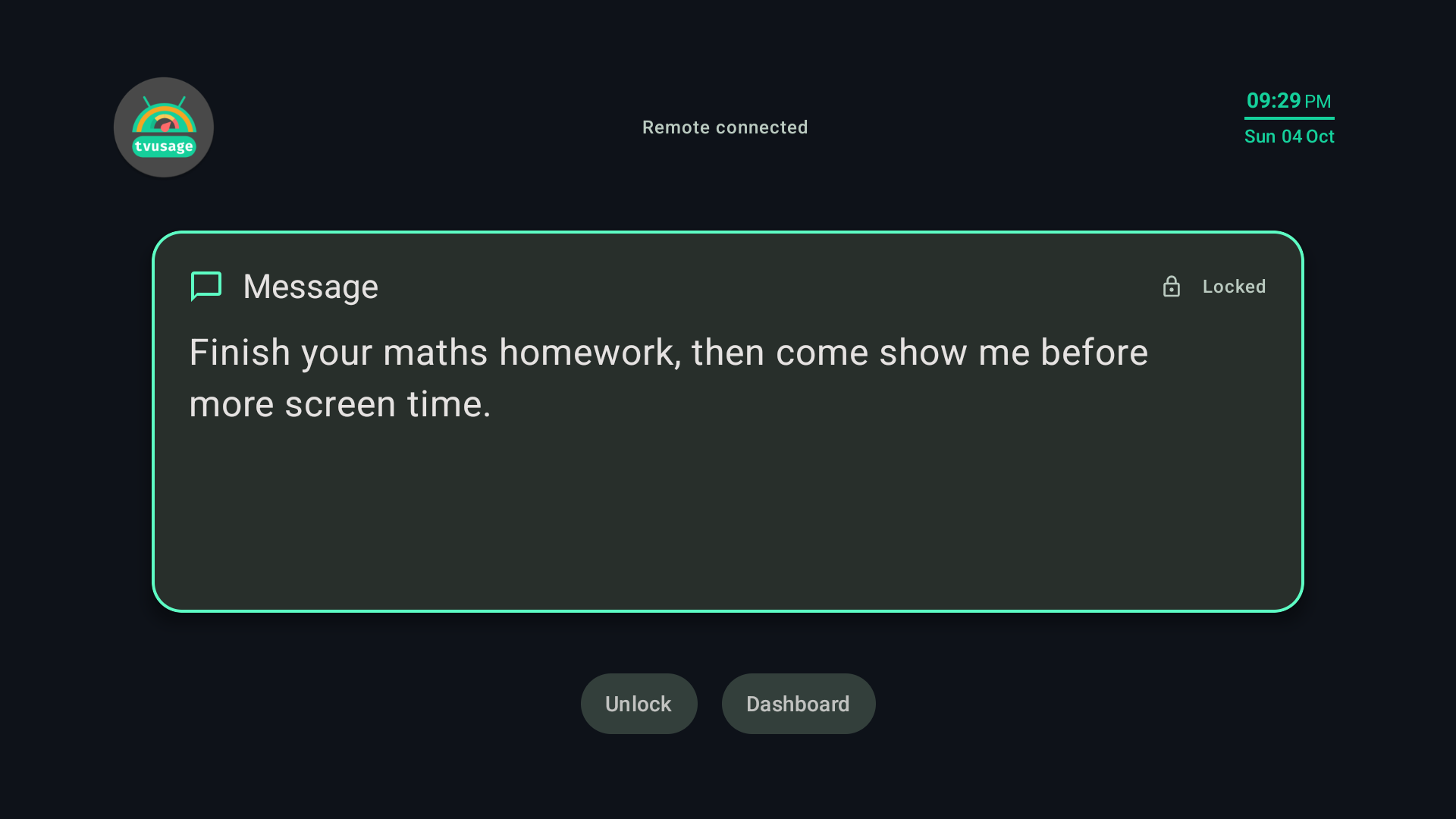
2. Check the child’s screen
Check the child device to confirm the message arrived. The lock screen explains the next step while screen time is paused. For reading, you can write:
Read for 20 minutes, then tell me about your favourite part.
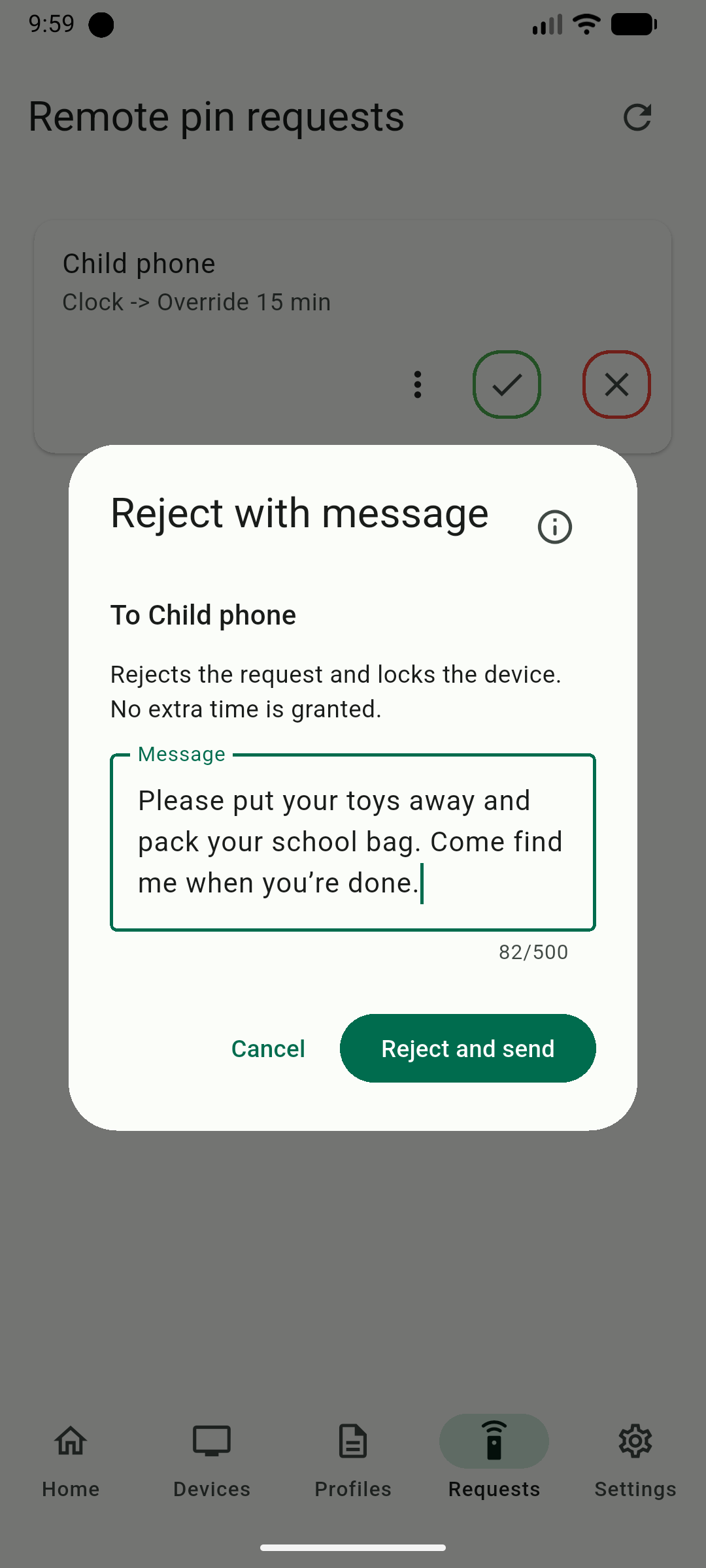
3. Explain a declined request
For an eligible pending extra-time or session request, open Request actions, choose Reject with message, write your explanation, then choose Reject and send. The request is declined and the current restriction stays in place. For chores:
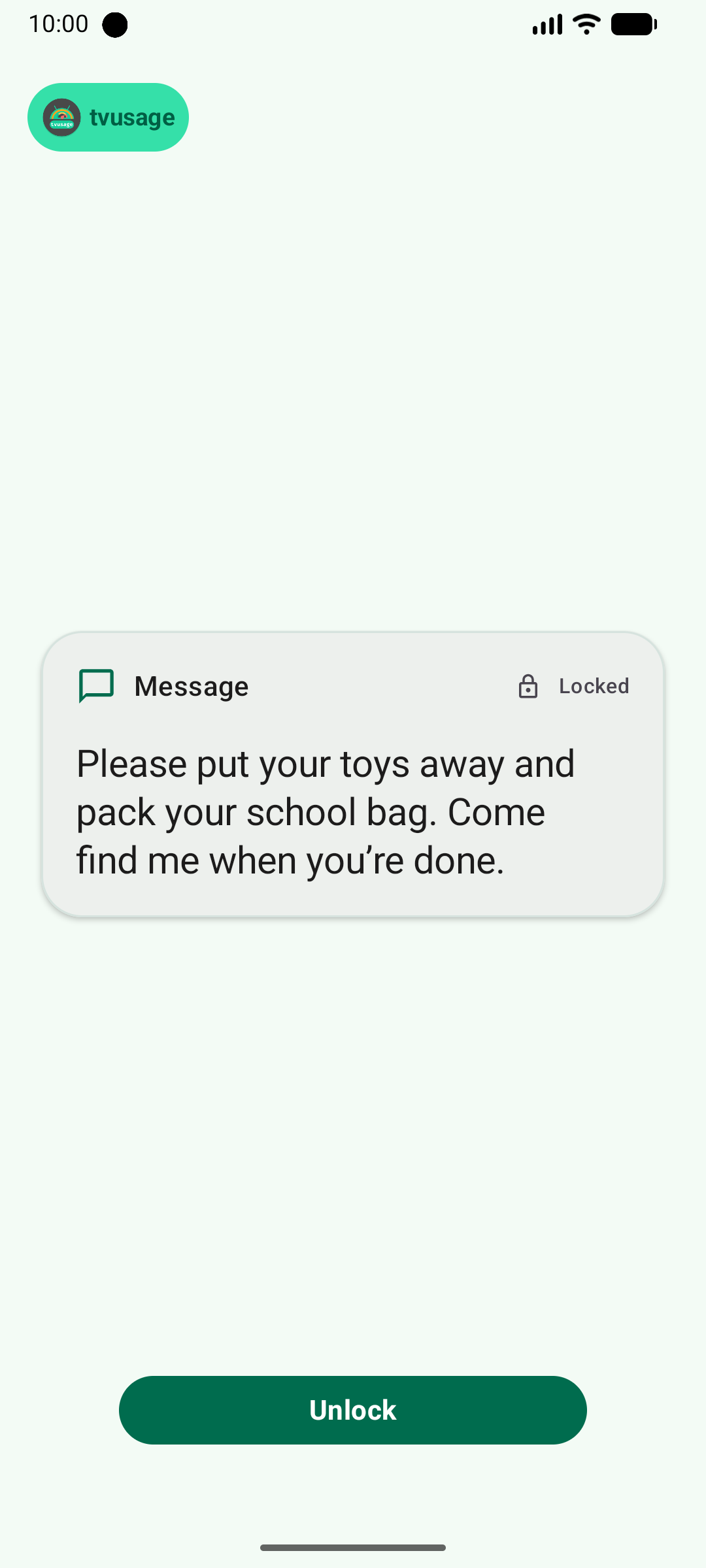
Please put your toys away and pack your school bag. Come find me when you’re done.
4. Check completion together
Talk with your child, check the homework, chores, or reading yourself, and decide when to unlock. tvusage does not verify tasks or give automatic rewards. Your existing limits and schedules still matter when deciding whether to allow more time.
Use a short dinner message
Dinner is ready.
Send it to each chosen device, one at a time, using Send and lock. Repeat Send message for every device you want to pause. Each locks and shows the message when received.